
Tagline Module
There are 4 Options for Dot Color on This Module: Blue, Black, White, and None

Edit this module just like a Word Doc: Use italic, bold, embed images, videos, links, alignment, add or remove the button.
Our Clients Include:
Streamline & Simplify Motor Vehicle Titling
Explore how Tyler's partnership with CHAMP Titles allows agencies to have digital processes for titling, registration, and lien management. Built for government, the Digital Titling ecosystem can either replace or be configured to work within any DMV’s existing infrastructure, reducing costs and improving efficiency every step of the way.
In this download, explore how to:
- Issue fully Digital, securely stored, and legally binding vehicle titles
- Increase cost savings with paperless processes
- Improve efficiency and accuracy of operations
- Streamline operations between DMVs, dealers, and lenders
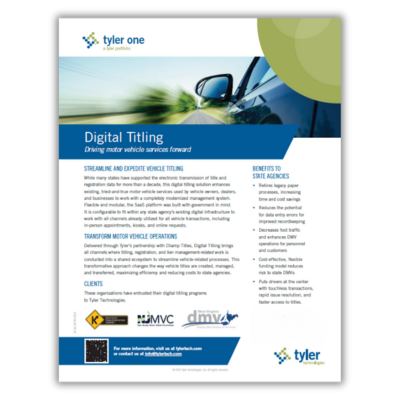
Digital Titling Application Sheet

Kentucky Department of Transportation

New Jersey Motor Vehicle Division

West Virginia Division of Motor Vehicles
Kentucky Department of Transportation
New Jersey Motor Vehicle Commission
West Virginia Division of Motor Vehicles

Rhode Island Division of Motor Vehicles
Interested in Digital Titling?
Contact our sales team by completing the form below, or emailing [email protected], and a representative will reach out soon!
Watch a Full Recorded Demo
Cards Module
Click to Edit
Use the Variables Section on right to change the image. Look for Cards Top Left Image, then add the URL for your image into the box provided. You can use any image from any source: TylerTech.com, Marketo Design Studio, etc.
Click to Edit
Use the Variables Section on right to change the image. Look for Cards Top Right Image, then add the URL for your image into the box provided. You can use any image from any source: TylerTech.com, Marketo Design Studio, etc.
Click to Edit
Use the Variables Section on right to change the image. Look for Cards Bottom Left Image, then add the URL for your image into the box provided. You can use any image from any source: TylerTech.com, Marketo Design Studio, etc.
Click to Edit
Use the Variables Section on right to change the image. Look for Cards Bottom Right Image, then add the URL for your image into the box provided. You can use any image from any source: TylerTech.com, Marketo Design Studio, etc.
Quote Module: PSAP consolidation has demonstrated cost savings amount political entities via shared equipment, personnel, and phisical facilities.
Donald Harpster
IT Coordinator, Stark County Sheriff's Office, Ohio
Light Jumbotron
There are 4 Options for Dot Color on This Module: Blue, Black, White, and None
Edit the text in this module just like a Word Doc: Use italic, bold, embed images, videos, links, add or remove the button. Functions just like the Tagline module.
Got questions? Contact us.
Contact the Team
Thank you for reaching out. Check your email for details.
Want more information?
Change the backgound image with "Block Left Background Image" and change the color with "Block Left Color"
Download NowHave questions?
Change the backgound image with "Block Right Background Image" and change the color with "Block Right Color"
Ask a QuestionChecker Board Module: First Row
Edit the text in this module just like a Word Doc: Use italic, bold, embed images, videos, links, add or remove the button. There are 4 rows total, two are hidden by default. PLEASE NOTE: To turn on the hidden rows, use the toggles Board Third Row Section & Board Fourth Row Section Add a link to the image using the variable Board First Row Link.
View ProjectChecker Board Module: Second Row
Edit the text in this module just like a Word Doc: Use italic, bold, embed images, videos, links, add or remove the button. There are 4 rows total, two are hidden by default. PLEASE NOTE: To turn on the hidden rows, use the toggles Board Third Row Section & Board Fourth Row Section Add a link to the image using the variable Board Second Row Link.
View ProjectChecker Board Module: Third Row
Edit the text in this module just like a Word Doc: Use italic, bold, embed images, videos, links, add or remove the button. There are 4 rows total, two are hidden by default. PLEASE NOTE: To turn on the hidden rows, use the toggles Board Third Row Section & Board Fourth Row Section Add a link to the image using the variable Board Third Row Link.
View ProjectChecker Board Module: Fourth Row
Edit the text in this module just like a Word Doc: Use italic, bold, embed images, videos, links, add or remove the button. There are 4 rows total, two are hidden by default. PLEASE NOTE: To turn on the hidden rows, use the toggles Board Third Row Section & Board Fourth Row Section Add a link to the image using the variable Board Fourth Row Link.
View Project
Checker Board Module: First Row
Edit the text in this module just like a Word Doc: Use italic, bold, embed images, videos, links, add or remove the button. There are 4 rows total, two are hidden by default. PLEASE NOTE: To turn on the hidden rows, use the toggles Board Third Row Section & Board Fourth Row Section Add a link to the image using the variable Board First Row Link.
View Project
Checker Board Module: Second Row
Edit the text in this module just like a Word Doc: Use italic, bold, embed images, videos, links, add or remove the button. There are 4 rows total, two are hidden by default. PLEASE NOTE: To turn on the hidden rows, use the toggles Board Third Row Section & Board Fourth Row Section Add a link to the image using the variable Board Second Row Link.
View Project
Checker Board Module: First Row
Edit the text in this module just like a Word Doc: Use italic, bold, embed images, videos, links, add or remove the button. There are 4 rows total, two are hidden by default. PLEASE NOTE: To turn on the hidden rows, use the toggles Board Third Row Section & Board Fourth Row Section Add a link to the image using the variable Board First Row Link.
View Project
Checker Board Module: Second Row
Edit the text in this module just like a Word Doc: Use italic, bold, embed images, videos, links, add or remove the button. There are 4 rows total, two are hidden by default. PLEASE NOTE: To turn on the hidden rows, use the toggles Board Third Row Section & Board Fourth Row Section Add a link to the image using the variable Board Second Row Link.
View Project
Checker Board Module: First Row
Edit the text in this module just like a Word Doc: Use italic, bold, embed images, videos, links, add or remove the button. There are 4 rows total, two are hidden by default. PLEASE NOTE: To turn on the hidden rows, use the toggles Board Third Row Section & Board Fourth Row Section Add a link to the image using the variable Board First Row Link.
View Project
Checker Board Module: Second Row
Edit the text in this module just like a Word Doc: Use italic, bold, embed images, videos, links, add or remove the button. There are 4 rows total, two are hidden by default. PLEASE NOTE: To turn on the hidden rows, use the toggles Board Third Row Section & Board Fourth Row Section Add a link to the image using the variable Board Second Row Link.
View Project
Checker Board Module: First Row
Edit the text in this module just like a Word Doc: Use italic, bold, embed images, videos, links, add or remove the button. There are 4 rows total, two are hidden by default. PLEASE NOTE: To turn on the hidden rows, use the toggles Board Third Row Section & Board Fourth Row Section Add a link to the image using the variable Board First Row Link.
View Project
Checker Board Module: Second Row
Edit the text in this module just like a Word Doc: Use italic, bold, embed images, videos, links, add or remove the button. There are 4 rows total, two are hidden by default. PLEASE NOTE: To turn on the hidden rows, use the toggles Board Third Row Section & Board Fourth Row Section Add a link to the image using the variable Board Second Row Link.
View ProjectFooter Hero Module
Use the variable Footer Hero Image URL on the right to add your Image URL for the backgroud. Then, edit your text to match. You can change the alignment, color, style, remove the button, etc.