
Live Webinars:
Take a Look at School ERP Pro,
powered by Infinite Visions®
Profund to Infinite Visions:
A Two-Hour Tour
Through Tyler’s evergreen philosophy, Profund users are eligible to upgrade to the software solution more than 1,300 school districts trust — Infinite Visions®.
We hope you'll join us for an in-depth look at Infinite Visions, including:
- Budgeting
- Payroll
- Position Control
- Integrated Content Management
- Reporting
- And more!
Meet the Speakers

Michele Richardson
Account Executive
Profund, Infinite Visions

Jamie Whitaker
Solutions Consultant
Infinite Visions
Tyler Technologies is following the guidance of local health officials and the CDC to protect the health and safety of their employees, clients, and partners during this unprecedented time regarding COVID-19 (the “coronavirus”). Learn more at https://tylertech.com/coronavirus.

Feeding America
Feeds America's hungry through a nationwide network of member food banks and engages the U.S. in the fight to end hunger.

Community Anti-Drug Coalitions of America
CADCA works to create safe, healthy, and drug-free communities. CADCA works to create safe, healthy, and drug-free communities.

Boys and Girls Club
Enables young people to reach their full potential as productive, caring, responsible citizens.
Feeding America
Feeds America's hungry through a nationwide network of member food banks and engages the U.S. in the fight to end hunger.
Community Anti-Drug Coalitions of America
CADCA works to create safe, healthy, and drug-free communities.
Boys and Girls Club
Enables young people to reach their full potential as productive, caring, responsible citizens.
Feeding America
Feeds America's hungry through a nationwide network of member food banks and engages the U.S. in the fight to end hunger.
Community Anti-Drug Coalitions of America
CADCA works to create safe, healthy, and drug-free communities.
Community Anti-Drug Coalitions of America
CADCA works to create safe, healthy, and drug-free communities.
Second One Column/Text module. You can place anything in here: embed videos, images, forms, etc.Lorem ipsum dolor sit amet, consectetur adipisicing elit, sed do eiusmod tempor incididunt ut labore et dolore magna aliqua. Ut enim ad minim veniam, quis nostrud exercitation ullamco laboris nisi ut aliquip ex ea commodo consequat. Duis aute irure dolor in reprehenderit in voluptate velit esse cillum dolore eu fugiat nulla pariatur. Excepteur sint occaecat cupidatat non proident, sunt in culpa qui officia deserunt mollit anim id est laborum.Integer posuere erat a ante venenatis dapibus posuere velit aliquet. Aenean lacinia bibendum nulla sed consectetur. Integer posuere erat a ante venenatis dapibus posuere velit aliquet. Aenean lacinia bibendum nulla sed consectetur. Vivamus sagittis lacus vel augue laoreet rutrum faucibus dolor auctor.
Contact Us for More Information!
Cards Module
Click to Edit
Use the Variables Section on right to change the image. Look for Cards Top Left Image, then add the URL for your image into the box provided. You can use any image from any source: TylerTech.com, Marketo Design Studio, etc.
Click to Edit
Use the Variables Section on right to change the image. Look for Cards Top Right Image, then add the URL for your image into the box provided. You can use any image from any source: TylerTech.com, Marketo Design Studio, etc.
Click to Edit
Use the Variables Section on right to change the image. Look for Cards Bottom Left Image, then add the URL for your image into the box provided. You can use any image from any source: TylerTech.com, Marketo Design Studio, etc.
Click to Edit
Use the Variables Section on right to change the image. Look for Cards Bottom Right Image, then add the URL for your image into the box provided. You can use any image from any source: TylerTech.com, Marketo Design Studio, etc.
Quote Module: PSAP consolidation has demonstrated cost savings amount political entities via shared equipment, personnel, and phisical facilities.
Donald Harpster
IT Coordinator, Stark County Sheriff's Office, Ohio
Light Jumbotron
There are 4 Options for Dot Color on This Module: Blue, Black, White, and None
Edit the text in this module just like a Word Doc: Use italic, bold, embed images, videos, links, add or remove the button. Functions just like the Tagline module.
Got questions? Contact us.
LIVE WEBINAR:
Plan First, Buy Second:
The Smarter Way to Plan for Your Next ERP
Tuesday, June 16 at 12:00 PT / 2:00 CT / 3:00 ET
Everyone asks, "Which system is the best fit?" Almost no one asks, "Are we ready to implement?"
Those are two completely different questions, and only one of them determines whether your project succeeds. Join a senior project manager and a district that's lived this process for an honest look at:
- What implementation actually demands
- Why readiness is the variable most districts ignore
- What a structured path to go-live really looks like
You'll also leave with a self-assessment scorecard to use with your team.

Carli Minervino
Account Executive
Tyler Technologies
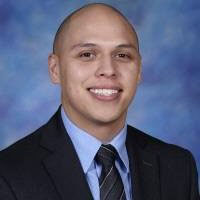
Mike Vargas
Assistant Superintendent of Finance and Operations/CSBO
Marquardt School District

Kathy Conroy
Senior Project Manager
Tyler Technologies
Learn more about School ERP Pro »
Register Now
Thank you for registering. Check your email for a confirmation email from GoToWebinar.
Want more information?
Change the backgound image with "Block Left Background Image" and change the color with "Block Left Color"
Download NowHave questions?
Change the backgound image with "Block Right Background Image" and change the color with "Block Right Color"
Ask a QuestionChecker Board Module: First Row
Edit the text in this module just like a Word Doc: Use italic, bold, embed images, videos, links, add or remove the button. There are 4 rows total, two are hidden by default. PLEASE NOTE: To turn on the hidden rows, use the toggles Board Third Row Section & Board Fourth Row Section Add a link to the image using the variable Board First Row Link.
View ProjectChecker Board Module: Second Row
Edit the text in this module just like a Word Doc: Use italic, bold, embed images, videos, links, add or remove the button. There are 4 rows total, two are hidden by default. PLEASE NOTE: To turn on the hidden rows, use the toggles Board Third Row Section & Board Fourth Row Section Add a link to the image using the variable Board Second Row Link.
View ProjectChecker Board Module: Third Row
Edit the text in this module just like a Word Doc: Use italic, bold, embed images, videos, links, add or remove the button. There are 4 rows total, two are hidden by default. PLEASE NOTE: To turn on the hidden rows, use the toggles Board Third Row Section & Board Fourth Row Section Add a link to the image using the variable Board Third Row Link.
View ProjectChecker Board Module: Fourth Row
Edit the text in this module just like a Word Doc: Use italic, bold, embed images, videos, links, add or remove the button. There are 4 rows total, two are hidden by default. PLEASE NOTE: To turn on the hidden rows, use the toggles Board Third Row Section & Board Fourth Row Section Add a link to the image using the variable Board Fourth Row Link.
View Project
Checker Board Module: First Row
Edit the text in this module just like a Word Doc: Use italic, bold, embed images, videos, links, add or remove the button. There are 4 rows total, two are hidden by default. PLEASE NOTE: To turn on the hidden rows, use the toggles Board Third Row Section & Board Fourth Row Section Add a link to the image using the variable Board First Row Link.
View Project
Checker Board Module: Second Row
Edit the text in this module just like a Word Doc: Use italic, bold, embed images, videos, links, add or remove the button. There are 4 rows total, two are hidden by default. PLEASE NOTE: To turn on the hidden rows, use the toggles Board Third Row Section & Board Fourth Row Section Add a link to the image using the variable Board Second Row Link.
View Project
Checker Board Module: First Row
Edit the text in this module just like a Word Doc: Use italic, bold, embed images, videos, links, add or remove the button. There are 4 rows total, two are hidden by default. PLEASE NOTE: To turn on the hidden rows, use the toggles Board Third Row Section & Board Fourth Row Section Add a link to the image using the variable Board First Row Link.
View Project
Checker Board Module: Second Row
Edit the text in this module just like a Word Doc: Use italic, bold, embed images, videos, links, add or remove the button. There are 4 rows total, two are hidden by default. PLEASE NOTE: To turn on the hidden rows, use the toggles Board Third Row Section & Board Fourth Row Section Add a link to the image using the variable Board Second Row Link.
View Project
Checker Board Module: First Row
Edit the text in this module just like a Word Doc: Use italic, bold, embed images, videos, links, add or remove the button. There are 4 rows total, two are hidden by default. PLEASE NOTE: To turn on the hidden rows, use the toggles Board Third Row Section & Board Fourth Row Section Add a link to the image using the variable Board First Row Link.
View Project
Checker Board Module: Second Row
Edit the text in this module just like a Word Doc: Use italic, bold, embed images, videos, links, add or remove the button. There are 4 rows total, two are hidden by default. PLEASE NOTE: To turn on the hidden rows, use the toggles Board Third Row Section & Board Fourth Row Section Add a link to the image using the variable Board Second Row Link.
View Project
Checker Board Module: First Row
Edit the text in this module just like a Word Doc: Use italic, bold, embed images, videos, links, add or remove the button. There are 4 rows total, two are hidden by default. PLEASE NOTE: To turn on the hidden rows, use the toggles Board Third Row Section & Board Fourth Row Section Add a link to the image using the variable Board First Row Link.
View Project
Checker Board Module: Second Row
Edit the text in this module just like a Word Doc: Use italic, bold, embed images, videos, links, add or remove the button. There are 4 rows total, two are hidden by default. PLEASE NOTE: To turn on the hidden rows, use the toggles Board Third Row Section & Board Fourth Row Section Add a link to the image using the variable Board Second Row Link.
View ProjectFooter Hero Module
Use the variable Footer Hero Image URL on the right to add your Image URL for the backgroud. Then, edit your text to match. You can change the alignment, color, style, remove the button, etc.